Workflows
The Workflows view allows administrators to configure which status transitions are permitted for each combination of role and tracker. Workflows control how issues move through their lifecycle, ensuring that only authorized users can transition issues to specific statuses.
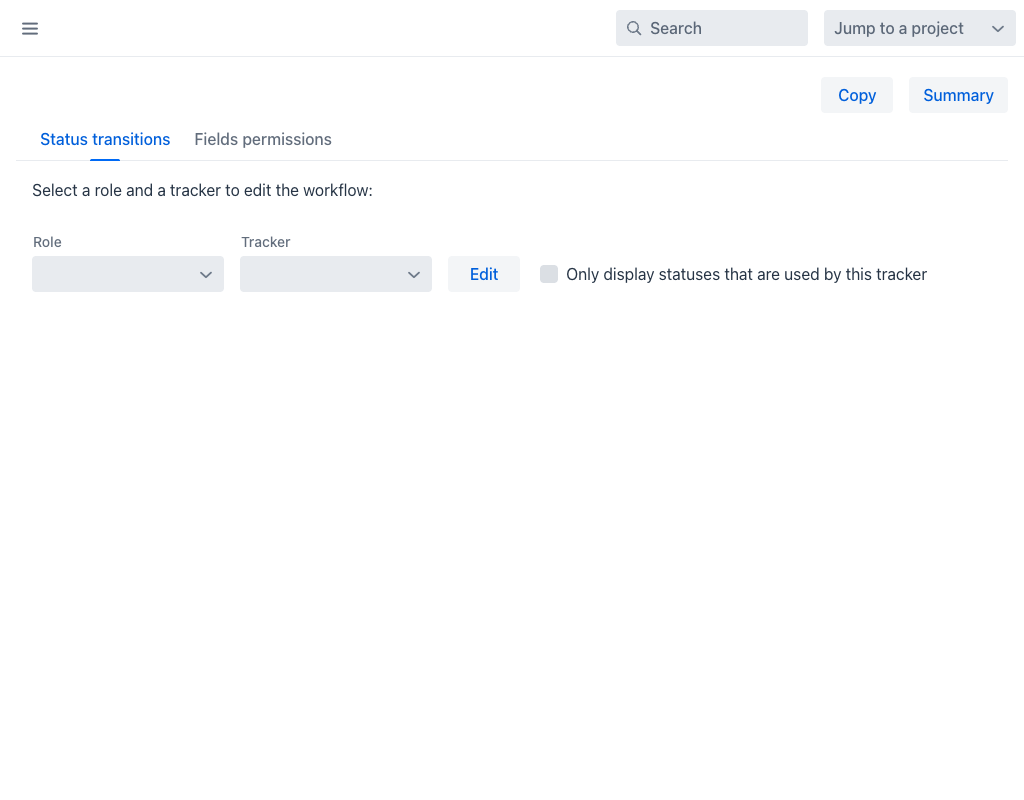
Selecting a Workflow
To edit a workflow, select a Role and a Tracker from the dropdown menus at the top of the view, then click Edit. The available roles and trackers are defined in the Roles and Trackers configuration views respectively.
- Role: The user role this workflow applies to (e.g., User, Administrator). Select All to edit transitions for all roles simultaneously.
- Tracker: The issue type this workflow applies to (e.g., Support Request, Issue Prioritization). Select All to edit transitions for all trackers simultaneously.
The Only display statuses that are used by this tracker checkbox filters the status matrix to show only statuses relevant to the selected tracker.
Status Transitions Tab
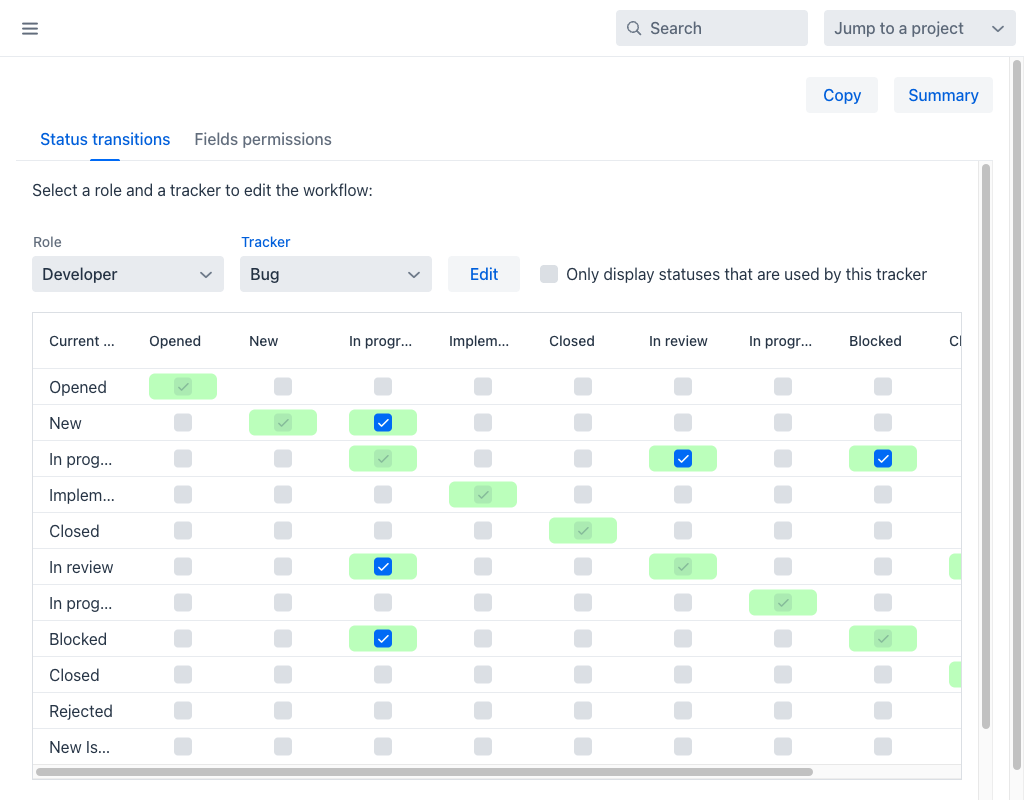
The Status transitions tab displays a matrix where rows represent the current status of an issue and columns represent the target status. Each cell contains a checkbox:
- A checked cell (green) means the transition from the row status to the column status is allowed.
- An unchecked cell (gray) means the transition is not permitted.
The special row New Issue at the bottom defines which statuses can be assigned when creating a new issue.
Additional Transition Rules
Below the main matrix, two expandable sections provide finer control:
- Additional transitions allowed when the user is the author: Enables extra transitions when the current user created the issue.
- Additional transitions allowed when the user is the assignee: Enables extra transitions when the current user is assigned to the issue.
Fields Permissions Tab
The Fields permissions tab controls field visibility and editability per status. For each field, administrators can set whether it is Read-only, Required, or Hidden at each workflow status, giving fine-grained control over the issue form based on where the issue is in its lifecycle.
The standard fields available for permission control include Subject, Tracker, Assignee, Category, Target version, Priority, Parent task, Start date, Due date, Estimated time, % Done, and Description. Custom fields are listed separately below the standard fields section. All fields — including Target version — can be independently set to read-only, required, or hidden for each combination of role and status.
Toolbar Actions
- Copy: Opens the Copy workflow dialog, which copies the workflow of one role and tracker to other combinations.
- Summary: Opens the Summary - Workflow view, an overview of the workflows configured across roles and trackers.
Copy Workflow Dialog
The Copy workflow dialog copies both the status transitions and the field permissions of one role and tracker combination onto one or more other combinations. It is split into two sections:
- Source: The workflow to copy from.
- Tracker (required): The source tracker.
- Role (required): The source role.
- Target: The combinations to copy to.
- Tracker (required): One or more target trackers.
- Role (required): One or more target roles.
The workflow is copied to every combination of the selected target trackers and target roles. Only roles holding the Add issues or Edit issues permission are offered. Clicking Copy with a field left empty highlights it with a message such as Select a source tracker or Select at least one target tracker, and nothing is copied. After a successful copy the application shows a confirmation and reloads the editor. Cancel closes the dialog without changes.
Warning
Copying replaces the existing workflow of every target combination. Any transitions and field permissions already configured for those combinations are removed and cannot be recovered.
Workflow Summary
The Summary - Workflow view lists every tracker as a row and every role holding the Add issues or Edit issues permission as a column. Each cell shows the number of transitions configured for that tracker and role, as a link that opens the workflow editor for that combination. A combination with no transitions is marked with a cross, which also opens the editor, so that missing workflows can be spotted and fixed from one place. The Back button returns to the workflow editor.