User Features
The features detailed in this section are the ones that can be accessed by any authenticated user in an application using the User Profile appjar.
Free mode
In free mode, User Profile allows a maximum of 5 profiles. A restrictions bar sits above the view for the whole of a free-mode run, showing the current Profiles usage, and saving a new profile is blocked once the allowance is exhausted. Existing profiles can still be edited. See Free mode for full details.
My Profile
The My Profile view allows the currently logged-in user to create, view, edit, and delete their own profile.
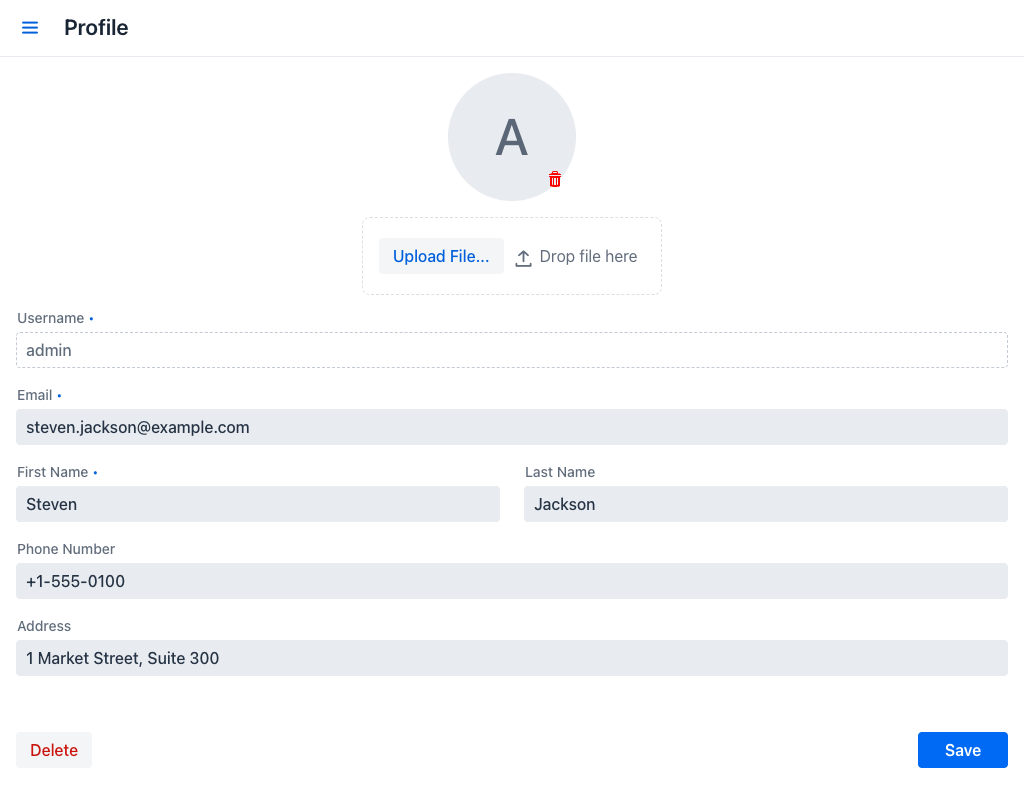
When the user has not yet created a profile, a hint message is displayed and the Delete button is not available. Once a profile has been saved, the Delete button becomes visible on subsequent visits. In free mode, the hint is omitted when the profile allowance is already exhausted, because no profile can be created at that point.
Users who do not have a profile yet are taken to this view automatically the first time they log in, so that they can create one. The application can disable this behaviour.
Profile Fields
The form contains the following fields:
- Username: Pre-filled with the username of the currently logged-in account. This field is read-only and cannot be changed. A username identifies a single profile, so the view never opens a profile that belongs to somebody else.
- Email: A required field that must contain a valid email address.
- First Name: A required field. Must not be empty.
- Last Name: An optional field for the user's last name.
- Phone Number: An optional field for a contact phone number.
- Address: An optional field for a mailing or physical address.
Profile Picture
The circular avatar at the top of the form allows the user to manage their profile picture:
- Upload: Click Upload File... or drop an image file into the designated area. Supported formats are GIF, PNG, JPEG, BMP, and WebP. The maximum allowed file size is 10 MB; larger files are rejected with an error notification. After uploading, a crop dialog opens to allow selecting and adjusting a circular area. Click Crop image to apply it, or Cancel to discard the upload.
- Remove: Click the red trash icon on the avatar to delete the current picture.
Saving the Profile
Clicking the Save button validates the form and persists the profile. If any required field is invalid, a notification is displayed at the bottom of the screen. On success, a confirmation notification is shown.
Deleting the Profile
Clicking the Delete button (only visible when a profile already exists) opens the Delete profile dialog. It restates the question and shows the Username and Email of the profile as read-only fields, so that the right profile is being removed. The user must click Delete to proceed, or Cancel to go back.
Warning
Deleting your profile is an irreversible action. Proceed with caution.