User features
The features detailed in this section are the ones that can be accessed by any user in an application using the User Manager AppJar.
Login
This AppJar provides a built-in login view that is presented when a user tries to access protected features of the application.
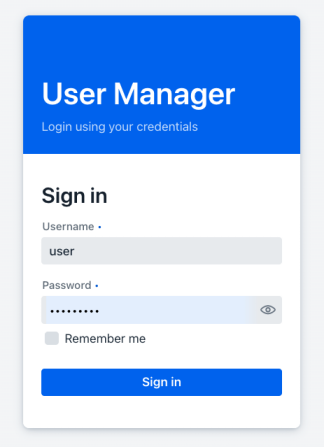
This view provides typical login functionality: it asks for the user's credentials to decide whether the user can enter the application.
If there is a problem validating the user's credentials, the user is informed about the issue in the same view.
This view also supports the persistent login ("remember me") feature. When the user enters the credentials and ticks the Remember me checkbox, the login is persisted, so it is not necessary to enter the credentials again to log in to the application for a given period of time (by default, approximately one week).
Signing in with an external provider
When the administrator has enabled one or more external authentication providers, the login view displays a button for each of them — for example, Sign in with Google or Sign in with GitHub — below the Remember me checkbox. Clicking a button starts the standard OAuth2 redirect flow with the chosen provider; once the user authorises the application, they are returned to the home view already authenticated.
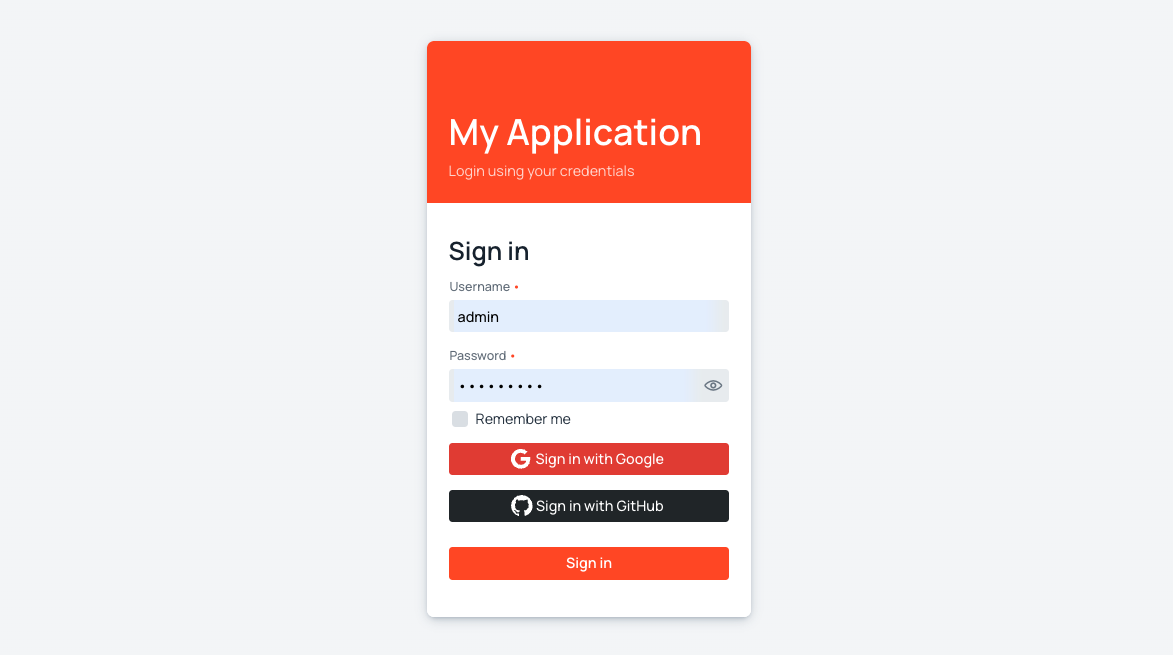
The Remember me checkbox is honoured by the external flow as well: ticking it before clicking a provider button issues the persistent-login token at the end of the OAuth round-trip, just as it would for regular sign-in.
When regular authentication has been disabled by the administrator, the username and password fields are not shown and the external-provider buttons are the only way to sign in. The Remember me checkbox remains visible above the buttons so the user can still opt into a persistent session.
Authentication errors
When an authentication attempt fails, the login view displays one of the following messages depending on the cause:
- Authentication error: The supplied credentials are incorrect. The user can try again.
- Access denied: The account exists but has been disabled by an administrator. The user must contact an administrator to regain access.
- Sign-ups are disabled: The user signed in with an external provider whose Allow new signups flag is disabled, and no matching account exists in the application. The user must contact an administrator to be pre-provisioned before retrying.
Profile
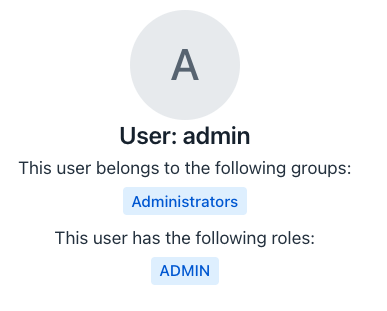
The profile view is a simple read-only view that shows the following information about the currently logged-in user:
- User name: The name of the user.
- Groups: The list of groups that the user belongs to.
- Roles: The list of roles that the user currently has.
The groups and roles are shown as read-only badges.
Change password
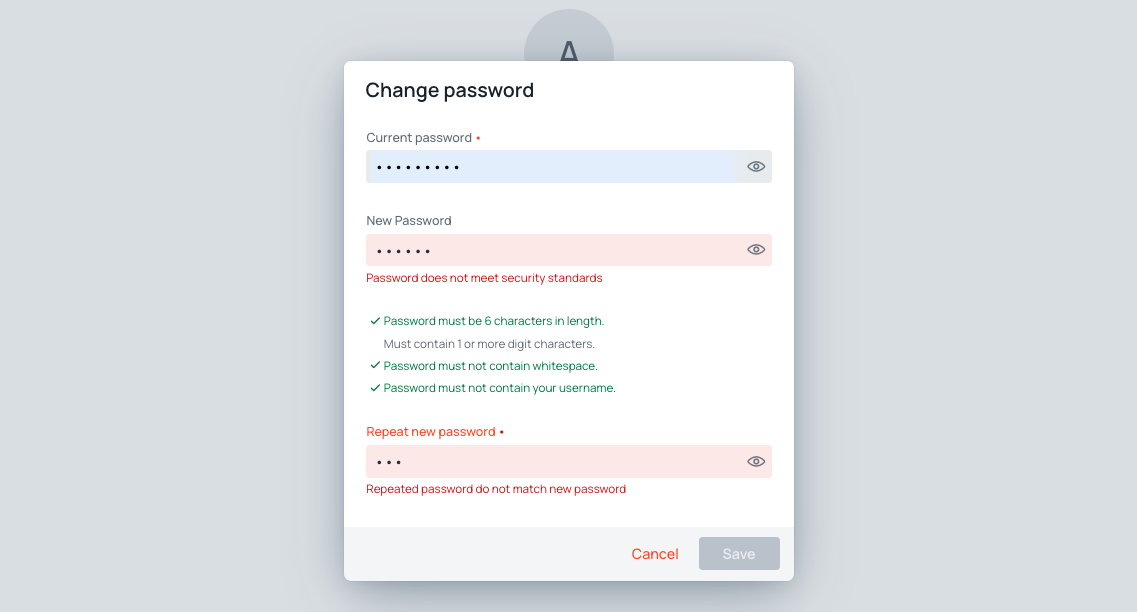
The Change password feature opens a dialog from the Profile view — it is not a separate page. Click the Change password button in the Profile view to open the dialog.
The dialog contains the following fields:
- Current password: Enter the password currently in use. The dialog validates this value before accepting a change.
- New Password: Enter the desired new password. Inline validation rules appear below the field and turn green as each requirement is met.
- Repeat new password: Re-enter the new password. A validation error appears if the two values do not match.
Reset password
Reset password is a separate view (not a dialog) reached via a time-limited reset link sent by an administrator. Unlike Change password, it does not require the user to be logged in.
Because the user's current password is unknown in this flow, the Current password field is absent. Only the New Password and Repeat new password fields are available. The password strength validations are the same as in the Change password dialog.